Far geometry is converted into a lighter billboard strategy that preserves the feeling of scene density.
Impostor Billboard
An optimization tool for large environments that keeps distant detail readable without carrying the full weight of distant geometry.
Large environments often carry too much distant geometry for too little image value. The scene becomes heavier, renders slow down, and layout gets harder to manage.
Impostor Billboard is built to solve that specific problem. It turns far background density into a lighter, smarter representation so shots can stay rich without paying the full cost in every frame.
Keeps the scale, removes the waste.
The tool is aimed at productions where environmental depth matters visually, but the underlying asset count starts hurting iteration speed, memory, and render efficiency.
Wide shots become easier to push because unnecessary distant complexity stops dominating the scene budget.
The setup is better suited to large digital sets where layered background detail needs to stay manageable.
The goal is not only lighter scenes. It is making the right compromises so the final image still feels full.
Load the baked impostor atlas, match the flipbook layout, and use the shader with confidence in production.
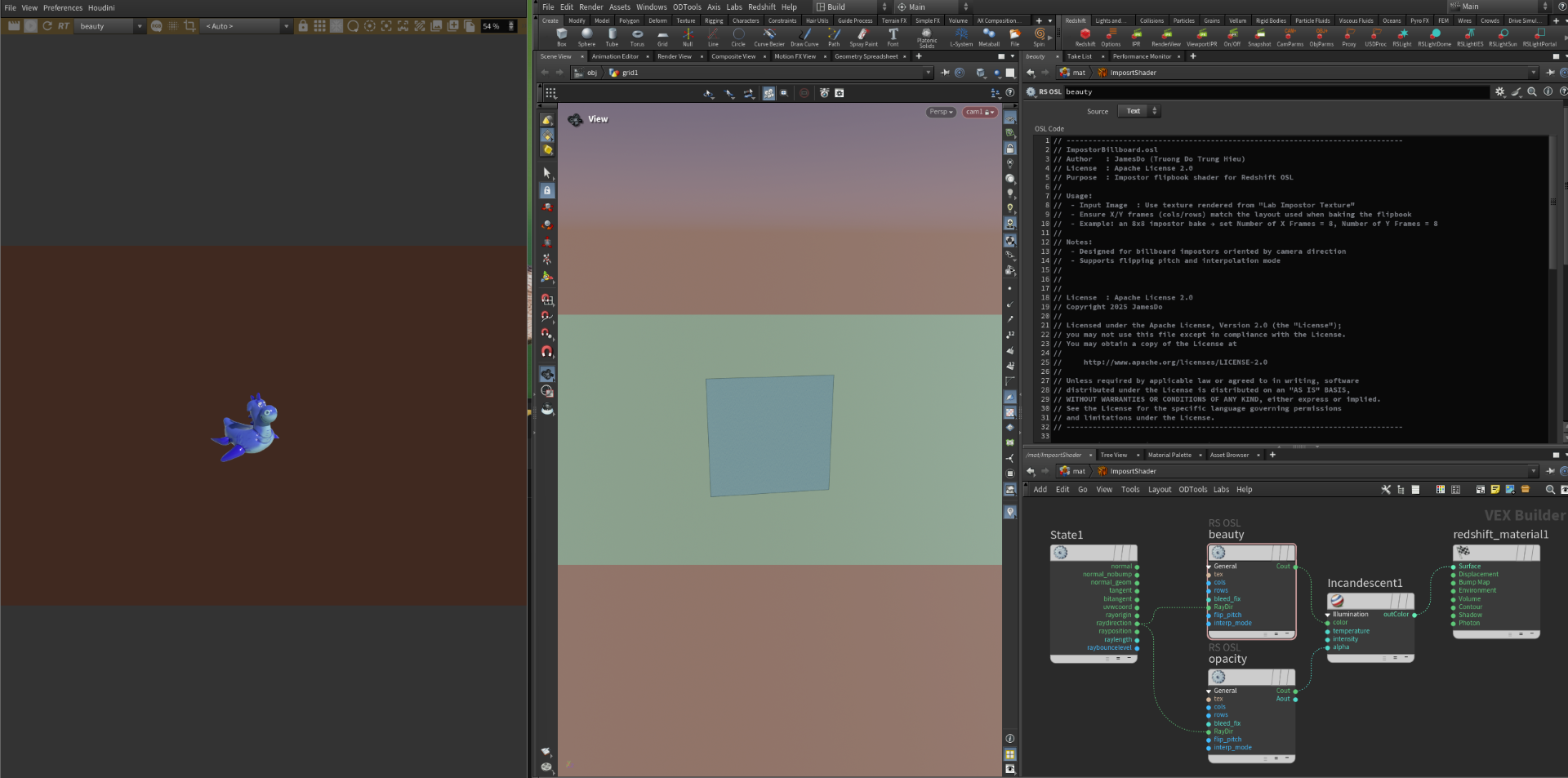
Redshift OSL Impostor Billboard is built for camera-facing billboard impostors in large environment scenes. It reads a baked impostor or flipbook texture, and the setup is straightforward once the correct Input Image is assigned and the X/Y frame layout matches the original bake. Configured properly, it becomes a lightweight and practical way to keep distant backgrounds dense, readable, and much easier to render.
Use the texture rendered from "Lab Impostor Texture" and assign it to the Input Image slot. Make sure this file is the final baked impostor atlas or flipbook intended for billboard playback.
Number of X Frames and Number of Y Frames must match the bake layout exactly. If the atlas was baked as 8 columns by 8 rows, set X Frames to 8 and Y Frames to 8. Wrong counts will produce incorrect sprite selection and broken viewing angles.
This setup is designed for billboard impostors driven by camera direction. It works best on distant environment elements where full geometry is no longer necessary, helping preserve visual richness while reducing render cost.
Use pitch flipping when the bake requires it, and adjust interpolation mode based on how smoothly you want the frames to transition. These controls help the impostor feel more natural in motion and across angle changes.
FAQ'S
Quick guidance for texture setup, frame layout, and billboard playback.
Use the final baked impostor atlas generated from your impostor texture workflow. The shader expects the finished flipbook texture, so loading a placeholder or mismatched bake can break angle sampling and make the billboard read incorrectly.
Match the shader values to the exact atlas layout used during baking. If the flipbook was exported as 8 columns by 8 rows, set X Frames to 8 and Y Frames to 8. Any mismatch will pull the wrong sprite cells and produce broken view transitions.
Pitch flipping and interpolation mode are the main controls to refine how the impostor reacts across camera angles. Use them after the atlas and frame layout are confirmed so you can tune motion quality without compensating for a setup mismatch.
Once the baked texture and frame layout are correct, the setup stays simple to use and practical to manage. It is built to reduce scene weight in large environments, giving artists a reliable way to optimize distant background assets without overcomplicating lookdev.